This guide is for anyone planning to buy Shadowrocket or check a previous purchase. Open the full App Store product page, then verify the developer, official icon, and app ID in that order. Finally, distinguish purchase records, app settings, and existing connection configurations. Similar names, price changes, and connection results do not confirm an app’s identity.
1. Open the product page before checking the app
Start with the full product page to identify Shadowrocket; don’t rely on the name alone in search results. Alternate names, search terms, and app descriptions can look similar, and search placement does not establish an app’s identity. Open the product details, then check the developer, icon, and product link on the same page. All three should refer to the same app.
The easiest place to start is this site’s App Store verification page, which provides the sole App Store product link. If you’ve already opened a product page from search, you can run the checks below without buying or launching the app first.
-
Open the product page
Search the App Store for Shadowrocket and open the full product page. Don’t stop at the search results or decide based on a thumbnail alone.
-
Check the developer
Check the developer information near the title, then look under Information for Provider or Seller. The name should be Shadow Launch Technology Limited.
-
Compare the icon
Compare the product page icon with the official icon below. Check for the white background and blue-violet rocket outline; a rocket symbol alone is not enough.
-
Check the app ID
On the product page, tap Share → Copy Link and check for
id932747118in the URL path. If you open the product page in a browser, check the address bar instead. -
Buy only after verifying
Once all three checks match, review the current price, Compatibility, and purchase information. Refer to the App Store page for system requirements and purchase eligibility.
2. Developer name: check the full legal entity
The developer should be Shadow Launch Technology Limited. Check the complete name; don’t stop after spotting a partial match such as “Shadow” or “Technology.” App Store pages may display the name in different locations or capitalization depending on the language, so check both the developer information near the title and the provider details under Information.
Words such as “official” or “tutorial compatible” in an app description do not replace the developer field. The description explains the product; the developer field identifies the entity listed by the App Store. If the name doesn’t match, stop before buying and reopen the product page from the verification page. Don’t use similar wording in the description to explain away the difference.
- Check the full name: Verify Shadow Launch Technology Limited in full, not just the first part.
- Check the field: Make sure the name appears as the developer or provider, not in promotional artwork.
- Check the page you’re on: Verify the product you’re about to buy; don’t rely on a screenshot or search snippet from another page.
- Cross-check the details: After confirming the developer, check the icon and app ID too. One matching field is not enough.
3. Official icon: compare its appearance, but don’t rely on it alone
The official icon is useful for a quick comparison, but it’s only one of the three checks. The official icon shown below has a blue-violet rocket outline on a white background. Compare the full shape, line work, and background; not every icon with a rocket is Shadowrocket.
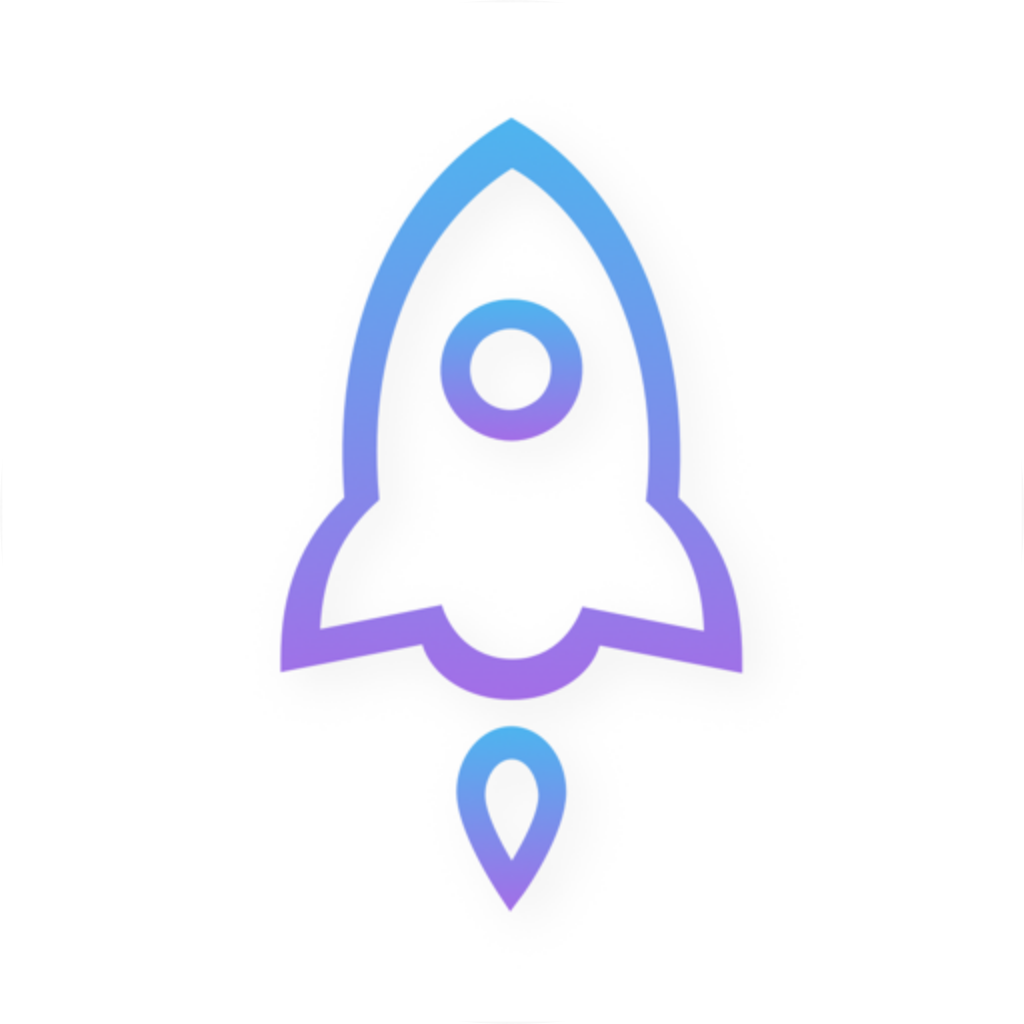
Use the icon on the App Store product page as your reference before buying. Home Screen display size, appearance settings, and screenshot compression can affect how it looks. Don’t judge authenticity based on subtle Home Screen color differences, and don’t treat an illustration in this article as definitive proof of an app’s identity.
4. App ID: verify 932747118 in the share link
The app ID is the clearest numeric identifier for this check: 932747118. On the App Store product page, tap Share → Copy Link and check the path for id932747118. You don’t need to visit an unfamiliar website or provide account or payment details to verify it.
Don’t mistake the storefront region or readable app name in the product link for the app ID. The product URL used on this site includes /us/app/shadowrocket/id932747118. Here, us is the storefront region in the path, shadowrocket is the readable name, and the number immediately after id is what you need to verify digit by digit. If the link ends with additional parameters, check the product path first.
If anything doesn’t match, return to the verification page
A similar name or price does not make up for mismatched details. Reopen the verified product page rather than guessing from the current search results.
5. Purchases and purchase history: price doesn’t prove authenticity
Shadowrocket is a paid app with a one-time purchase. Check the current price on its App Store product page. Store region, currency, and account purchase status can affect what you see, so don’t use an old article’s price to judge whether an app is genuine. A price or Open button is no substitute for the three identity checks above.
If you’ve already bought the app, first check which Apple Account is currently used for App Store purchases, then look under Apps or Purchased for the purchase record. The menu name may vary by system version. Open the matching product page and verify the developer and app ID again. If another device shows a price, don’t pay again right away; first check the purchase account, record, and device compatibility.
- First purchase: Verify the product’s identity before reviewing the price and system purchase confirmation.
- Download again: Open the app from the current account’s purchase history and confirm it’s the same product, not a similarly named result from a new search.
- Using another device: iPhone and iPad are the primary devices. Check the App Store page for compatibility information for Mac, Apple TV, and Apple Vision. Refer to the App Store page for system requirements and purchase eligibility.
- Purchase record doesn’t match: Check the actual item in the purchase history for your App Store account. The payment receipt should correspond to that record.
6. After installation: connection results don’t verify app identity
Whether the app connects is not a way to verify that it’s genuine. Even after confirming the product’s identity, you still need a valid existing configuration, a working network, and appropriate routing settings. Home, Config, and Settings are interface sections you’ll encounter in the manual, but their labels do not replace the App Store product information.
For initial troubleshooting, note the current selection under Home → Global Routing, then check whether rules are involved. The comparison below covers three routing options in Shadowrocket to help distinguish “Did I buy the right app?” from “Is the connection behaving as configured?” Scene settings should be checked separately against the existing scene configuration.
Config
RecommendedRoutes traffic according to the rules in the active configuration. Rules may direct traffic to DIRECT, a proxy policy, or REJECT. Traffic that hasn’t matched an earlier rule is handled by a later rule such as FINAL.
Best for: Using an existing, verified rule configuration to route traffic as intended.
Proxy
Switches global routing to the proxy route for comparison with behavior under Config. Results still depend on the selected connection configuration, network conditions, and applicable exceptions.
Best for: Temporarily comparing rule-based routing with the proxy route. Restore the original setting when you’re done.
Direct
Switches global routing to the direct route to check direct access over the local network. Access to a destination while using direct routing does not prove that an existing proxy configuration works.
Best for: Comparing direct access to help distinguish local network issues from proxy connection issues.
Check automatic connections separately. If the app reconnects after you disconnect manually, go to Settings → On Demand and review the existing on-demand connection settings; this doesn’t mean you bought the wrong app. Note the original state before making changes, and change one setting at a time. For configuration details, continue with the user guide rather than buying the app again to troubleshoot a configuration issue.
- Product identity: Return to the App Store and verify the developer, official icon, and app ID.
- Connection configuration: Check that your existing configuration is complete and correctly selected.
- Routing rules: Check Global Routing and the currently active Config.
- Automatic connections: Check Settings → On Demand, then review the trigger conditions.