One-time purchase
The US storefront price is $2.99. The final price is shown in the App Store.
OFFICIAL MANUAL / APP STORE
A paid app with a one-time purchase, available only on the App Store. Verify the listing, then check your account region and device compatibility.
Check the App Store listing for pricing, purchase eligibility, and system requirements. Buying the client ≠ buying a service plan.
Shadowrocket isn’t available in the mainland China storefront, and search results depend on the store associated with your account. Your Apple ID country or region determines which App Store you see—not just your device’s location, system language, or the storefront path in a link on this page. When you open the product page above, the App Store may show content for the storefront associated with your signed-in account. Read the page carefully before checking whether the app is available to purchase.
Check the region for the account used with “Media & Purchases.” Go to Settings → Apple ID → Media & Purchases → View Account → Country/Region. If your system labels this section “Apple Account,” open the corresponding account settings. Wording and menu levels may vary slightly by system version. Make sure you’re checking the account used for media and app purchases, not just the cloud services account shown at the top of your device settings.
To check the requirements for changing your region, open the system-provided change option under “Country/Region” and read each condition on screen. Your account balance, active subscriptions, Family Sharing status, and payment details may affect whether you can continue; follow the information shown for your account. This page explains where to check and how to find the relevant settings, but can’t guarantee that a region change will be possible. Don’t skip account prompts just to find the app.
Once you’ve confirmed the storefront is available, check your payment method and device compatibility. If the page says the app isn’t available in your current region, repeatedly searching for the same name usually won’t help. If payment failed, resolve the billing issue first. Treat “not visible in the storefront,” “payment incomplete,” and “device incompatible” as separate issues rather than assuming each is a download problem.
01 / PRODUCT VERIFICATION
Check these three identifiers first, then use the official screenshots to familiarize yourself with the interface. Screenshots aren’t proof of purchase.
APP ID 932747118
Shadowrocket
Shadow Launch Technology Limited
The official developer is Shadow Launch Technology Limited. Check the developer or seller information near the product page title and in the details, and confirm the full name matches. Searching for “Shadowrocket” may show apps with similar names, similar icons, or overlapping keywords. A prominent result or similar name doesn’t verify an app’s identity.
The official icon is the blue-and-purple outlined rocket on a white background shown on this page. Also check the app ID: 932747118, which corresponds to id932747118 in the product page address. The name, developer, icon, and app ID should all match. If anything doesn’t, stop before confirming a purchase and return to the App Store link at the top of this page to check again.
Don’t treat a promoted search result, keywords in a description, or text supplied by someone else as proof of a developer’s identity. A safer sequence is to open the product page, read the developer’s full name, check the app ID in the address, and then verify the icon. Once everything matches, review the price and purchase button. This helps avoid confusing similar search results.
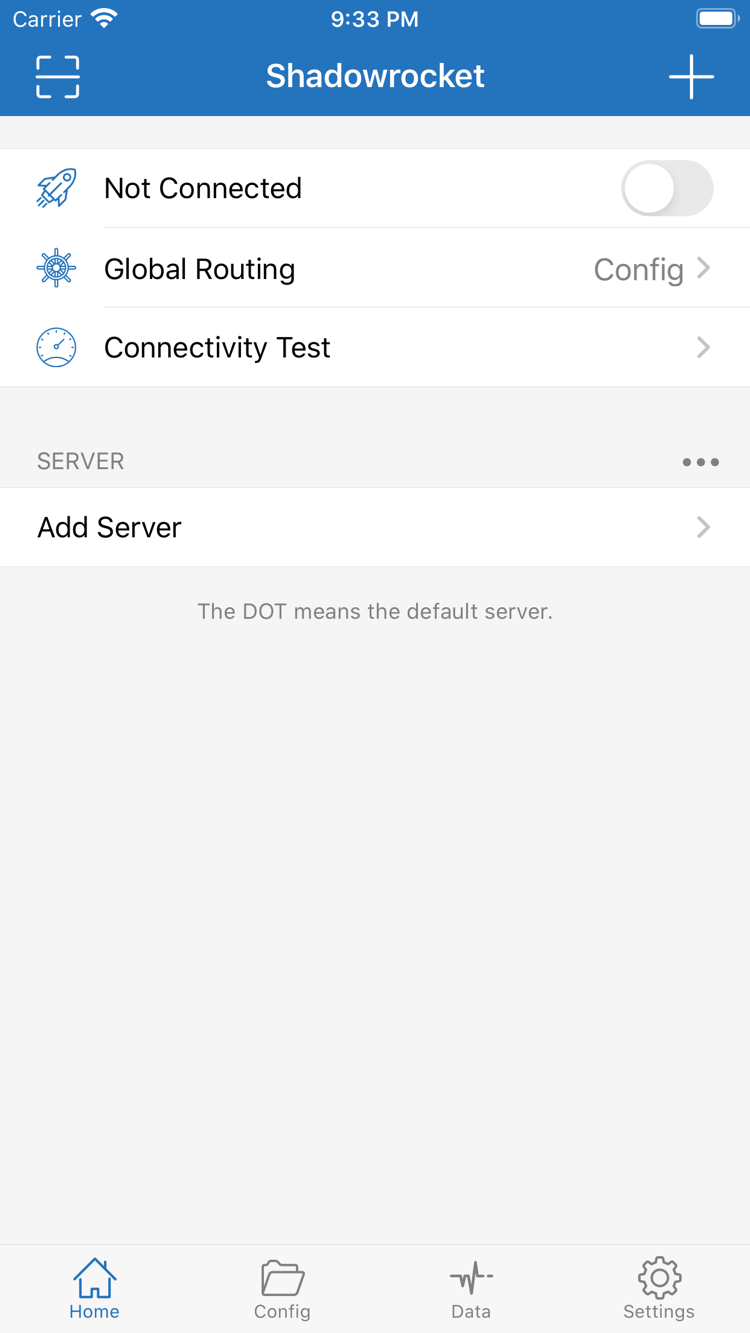
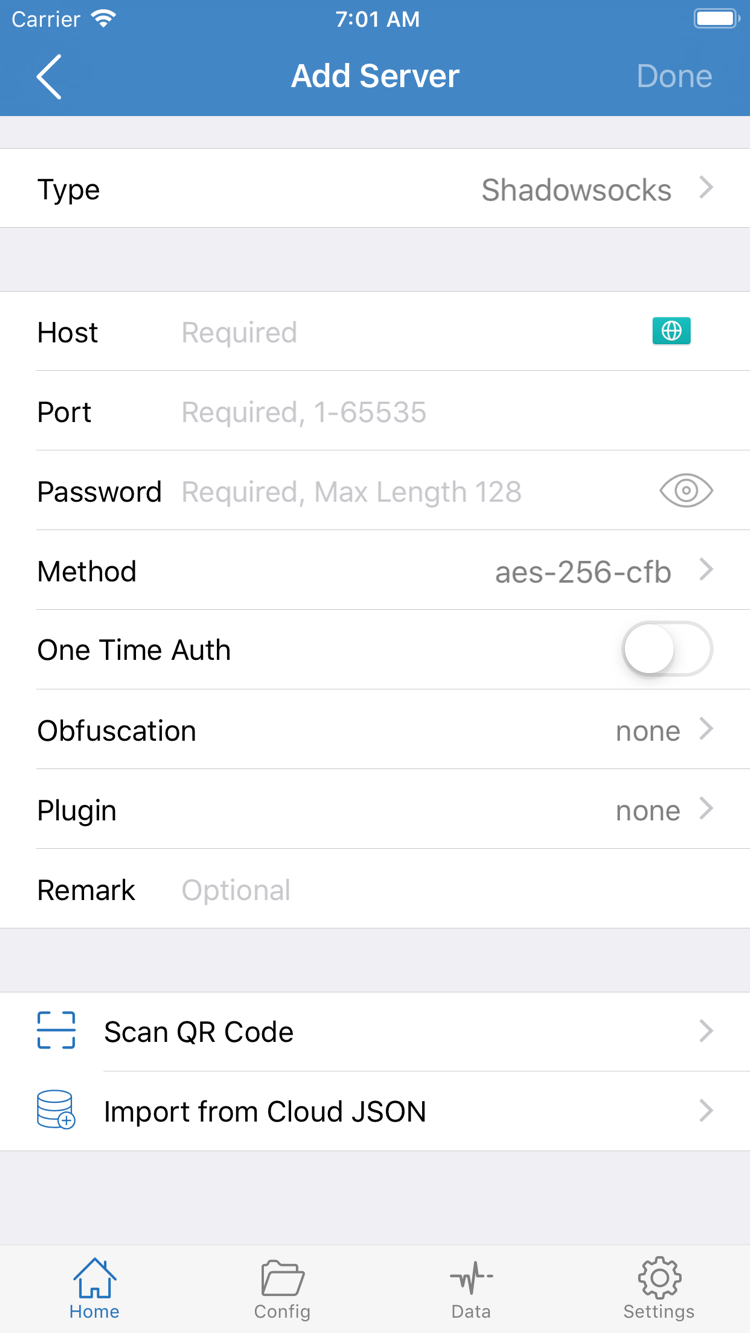
The screenshot on the right was uploaded to the App Store by the developer. Home shows Not Connected, Global Routing, Connectivity Test, and the SERVER section; Add Server shows fields for manual entry. Server entries shown in the screenshot are part of the original image only. They aren’t automatically included with your purchase and aren’t connection resources provided by this site.
Layout, language, and options may vary by device and app updates. First verify the app using the three identifiers on the product page, then use the screenshots to locate features. Don’t purchase again just because a button has moved, and don’t rely on appearance alone to verify an app.
02 / IPHONE
On iPhone, verify the App Store listing before installing the app. Check the compatibility section on the product page; system requirements are as shown on the App Store listing. If your device doesn’t meet the listed requirements, first check whether it supports the required system update. This page isn’t a fixed list of system versions—store requirements can change as the app is maintained.
If no servers are available the first time you open the app, connection settings probably haven’t been imported yet; this doesn’t usually mean the purchase failed. The App Store manages your client purchase record, while server addresses, ports, authentication details, and subscription content come from your existing configuration. Check these separately, and don’t pay again just because the list is empty.
The first time you try to connect, the system may ask for permission to add a VPN configuration. This allows the app to create the corresponding network connection configuration. Confirm that you initiated the action in Shadowrocket before granting permission. Approval doesn’t guarantee that the server is available; you’ll still need to check the configuration fields, network status, and Global Routing selection.
If you only want to verify the app and browse the interface for now, you can do that first and handle permissions when you’re ready to connect. After importing your existing configuration, check the entry name and key fields, then select a server, connect, and test access. See the getting started guide for the steps. For full setup and routine maintenance, continue with the system guide.
03 / IPAD
If you bought Shadowrocket on iPhone using an Apple ID, you can find and download it in the Purchased section of the iPad App Store using the same Apple ID. You won’t be charged again for the same purchase. Check the App Store listing for purchase eligibility and system requirements. Before downloading, confirm the account used for Media & Purchases on your iPad so you don’t confuse the device’s signed-in account with the account that made the purchase.
On iPad, open the App Store, go to your account’s purchased items, and search for Shadowrocket. Confirm the developer matches, then use the redownload option. If you see a price instead of a purchased download option, check the account and purchase history before confirming payment again. Whether a purchase appears on a device depends on which purchasing account the store recognizes, not whether both devices are connected to the same Wi-Fi network.
In landscape or at different window widths, iPad has different amounts of space for lists and content, so controls may not be in exactly the same place as in iPhone screenshots. Find options by their names—Home, Config, Settings, and others—rather than matching every pixel. Enter Host, Port, and other Add Server fields using your existing server details; don’t change parameters just because the screen is larger.
Restoring the app purchase doesn’t automatically bring all your iPhone connection details to iPad. After installation, check the server list and Config for the content you need. If it’s missing, import your own subscription or server details. Keep a recoverable copy of the original configuration before migrating, then check the connection, rules, and DNS behavior separately. Restoring a purchase and migrating configuration are different tasks.
04 / PURCHASE RESTORE
Start with the account used for the original purchase. Sign in to the App Store with that Apple ID, open Account → Purchased, find Shadowrocket, and download it again. You won’t be charged a second time for the same purchase. Depending on your system, Purchased may be under “Apps” or “My Apps”; use the labels shown on your device.
If you can’t find the app, first check the account used for Media & Purchases, then review your purchase history and any hidden purchases. Changes to your account region or storefront availability may also affect whether the app appears for redownload. If you see a message, keep its full text and determine whether the purchase wasn’t recognized or the store can’t currently provide the content. Don’t assume the original purchase is invalid just because you see a price button.
Before switching devices, make sure you can still access your own subscription link, server details, and any configuration files you want to keep. Proof of purchase confirms that you bought the client; it doesn’t include a complete backup of your connection details. If the old device still works, check that your configuration can be restored before erasing it, and store any information containing authentication details securely.
After installing on the new device, verify the app, then import your existing details. Check that all entries are present after importing a subscription. For a manually entered server, verify Type, Host, Port, and authentication fields one by one. If you use rules, also check the configuration in Config and the Global Routing selection. The app launching, entries appearing in the list, and a successful connection test are separate stages; one doesn’t guarantee the others.
After migrating your configuration, run a basic connection test before changing On Demand or other automated behavior. This makes it easier to identify whether a problem comes from the original connection details, the network, or a later setting. Avoid changing several things at once, so you can roll back if needed. For Family Sharing, check eligibility and conditions in the App Store listing and family account settings; don’t assume the purchase restoration rules for one account apply to every family member.
05 / PRICE & SCOPE
The US storefront price is $2.99. The final price is shown in the App Store.
Find the app in Purchased using the account that made the original purchase.
Use your existing subscription or server details.
Shadowrocket is a paid, closed-source commercial app with a one-time client purchase and no monthly app fee. The US storefront price is $2.99; other storefronts show local currency. The App Store purchase screen shows the current price, taxes, and final amount. The price on this page explains the purchase model and doesn’t replace the checkout screen or promise a converted price for other regions.
If the app is installed but Home has no servers, return to the configuration import steps. If a server is listed but won’t connect, check your existing details and network status. Neither situation means you need to pay more for the client. Separating purchase issues from connection issues also helps avoid confusing App Store order status with the status of external configuration.
App Store manages subsequent app updates. Check the updates list in your account or use automatic updates according to your system settings. Updating the app and refreshing an existing subscription are different tasks: the store distributes app updates, while your configured subscription source maintains server details. Keep a recoverable copy of your settings before making major configuration changes.
Before purchasing, check that your account region matches an available storefront, the developer is Shadow Launch Technology Limited, the app ID is 932747118, and your device meets the requirements on the current listing. Once these details match, complete the purchase through the App Store.
PURCHASE QUESTIONS
Check storefront availability, purchase status, and device compatibility separately.
Shadowrocket isn’t available in the mainland China storefront. Your Apple ID country or region determines which App Store content you can see. Check the account used for Media & Purchases and its country or region, then see whether the product page is available.
Note the exact App Store message, then check your account region, payment status, device compatibility, available storage, and network connection. If the message mentions a billing or account restriction, resolve it through the account options provided by the system rather than repeatedly attempting to purchase.
Sign in with the Apple ID used for the original purchase, find Shadowrocket in your App Store account’s purchased items, and download it again. You won’t be charged a second time for the same purchase. Restoring the app and restoring connection settings are separate: you’ll need to import your existing subscription or server details separately.
Use the same Apple ID to download Shadowrocket from Purchased in the iPad App Store. Check the App Store listing for purchase eligibility and system requirements. You’ll still need to check and import your existing connection settings on iPad.
The compatibility section of the same App Store listing includes Mac, Apple TV, and Apple Vision. Check the App Store on the device you want to use. See the listing for universal purchase availability and system requirements.
This page and the official manual keep interface labels such as Home, Add Server, Config, and Global Routing in English so you can match them directly to the app. Find the relevant screen for your task, then follow the instructions. Don’t use the interface language alone to determine whether an app is genuine.