OFFICIAL MANUAL / QUICKSTART
Shadowrocket
Import, Connect, and Verify
Complete the initial setup in five steps. First get one existing server working, then check the rules. Avoid changing server, DNS, and routing settings at the same time.
Allow about ten minutes to work through the steps in order. The time required depends on whether your details are complete, your network, and system authorization. The images are official App Store screenshots to help identify interface elements; field names on your device may vary.
STEP 01 / SERVER INPUT
Add Server: Add a Server or Import a Subscription
Choose an import method based on the details you have. If you have complete parameters for one server, add it manually. If you have a subscription link, use Subscribe. Both methods should add a selectable server under SERVER in Home. You don't need to use both for your first connection.
Manual Setup: Match Each Field to Your Server Details
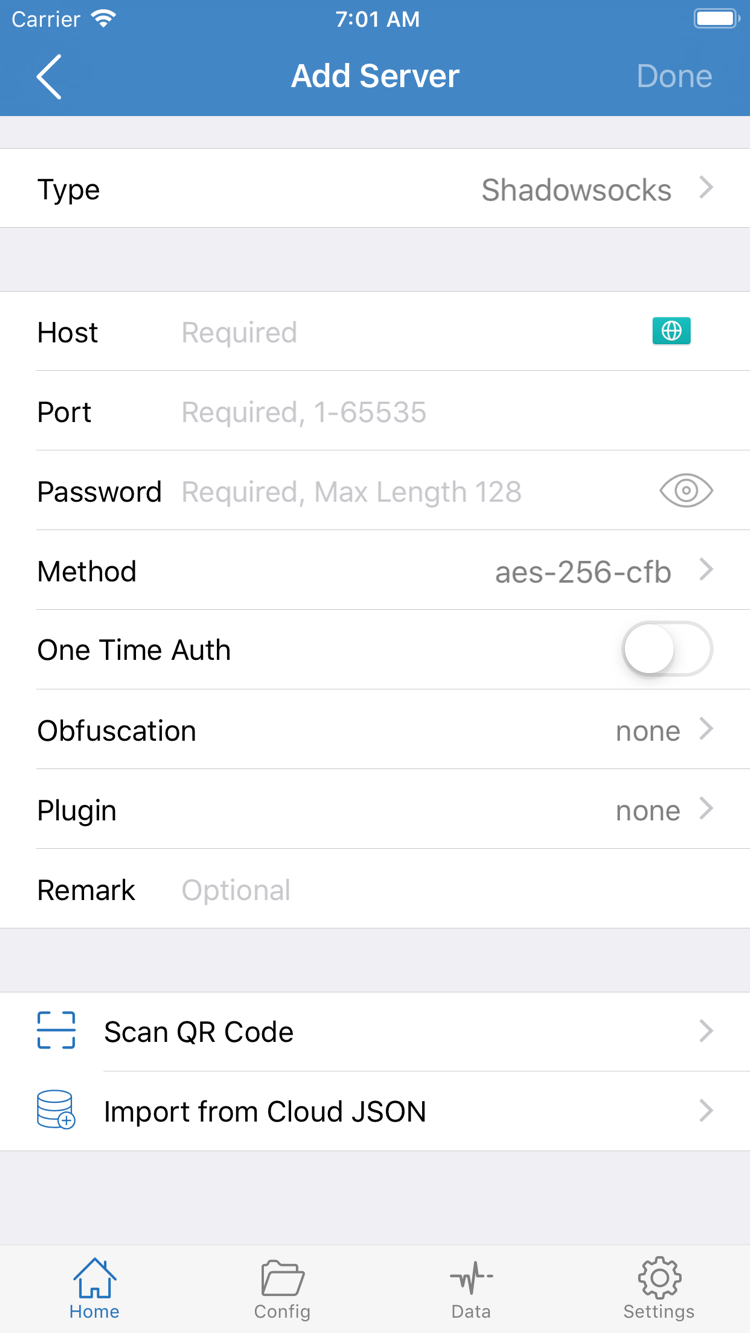
Open Home and tap Add Server, or tap the plus button to add an entry. Open Type, select the protocol specified in your server details, then fill in the fields required for that type. Type determines which options appear. Don't fill in fields based on a screenshot and then switch types at random.
For example, the official screenshot shows fields such as Host, Port, Password, and Method. Enter the server hostname or address in Host, the corresponding port in Port, and check Password and Method against your original details. Other protocols may use different identity, transport, or security settings; Password is not a universal field shared by every protocol. Password capitalization, trailing spaces, and line breaks copied along with the value can all cause failures.
After checking the details, use the page's save or done control to return to Home, then check whether the new entry appears under SERVER. If your details are in a QR code, use Scan QR Code and grant camera access when prompted by the system. Import from Cloud JSON is a separate entry point for structured data; don't use a regular subscription link as if it were the corresponding JSON content.
Subscribe: Import Your Own Complete Subscription Link
If you have a subscription link, open Type in Add Server and select Subscribe. Enter your complete link in the URL field, add a description to help identify it, and save. Use the link provided for your own service, preserving the full path and all parameters when copying it. Subscription links may contain account information, so don't post them publicly or include them in shared screenshots.
After saving, wait for the subscription request to finish, then return to Home and check the subscription group and its server entries. If you see a group name but no selectable servers, don't turn on the connection switch yet. First try updating the subscription and check that the response is a subscription Shadowrocket can recognize, not a login page, error page, or ordinary web page.
After importing, select one server to use for this test. Keep troubleshooting focused on that entry rather than changing several settings every time something fails. A subscription and a .conf configuration file are not the same thing. For details, see the quick reference to subscriptions and configurations.
STEP 02 / ROUTING CHOICE
Global Routing: Choose How to Handle Traffic
First decide whether you're checking a server or verifying your everyday rules. Open Global Routing in Home to choose Config, Proxy, or Direct. This controls how traffic is handled; it won't fix an incorrect server password or supply missing connection details.
Use Proxy for an Initial Check and Config for Rule-Based Routing
Proxy routes this test through the currently selected server. After importing for the first time, you can select Proxy before connecting to reduce interference from differences in rule matches. This doesn't guarantee access to every service; results still depend on the server, destination service, and network conditions.
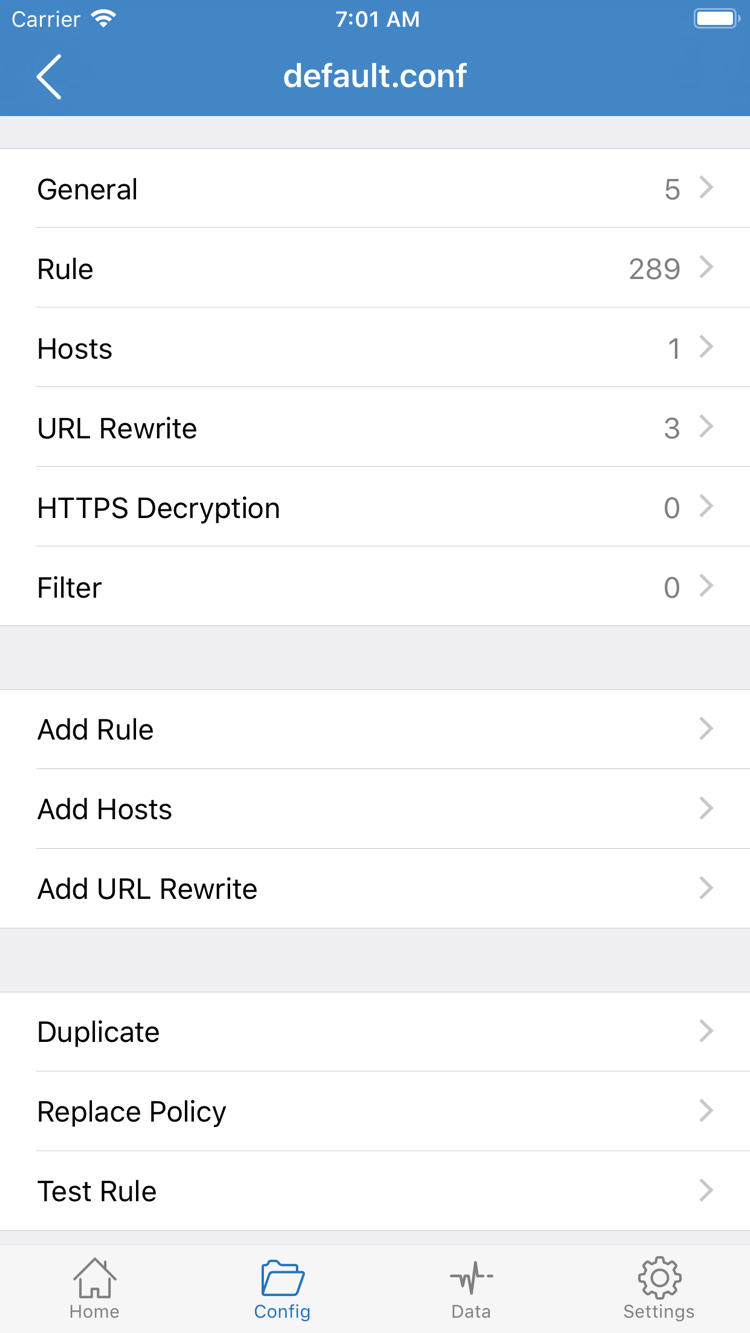
Config handles requests according to the rules in the active configuration. Before using it, open Config and confirm which configuration file is active. When reviewing a file, focus on General and Rule. Opening or editing a file doesn't make it the active configuration; check which file is selected in the configuration list.
Direct connects to the destination without routing through the selected proxy server. It provides a useful comparison: if the same destination behaves differently under Direct and Proxy, investigate the network path or server rather than blaming the app switch. If you want traffic to use an existing server, don't rely on the connected status alone—check that Direct isn't selected.
In Config, Review Rules Without Changing Them
The official screenshot on the right shows the configuration sections and the Add Rule entry point. During initial setup, first check what the existing rules do; there's no need to change Hosts, URL Rewrite, or HTTPS Decryption. The syntax below is a standalone example, not a complete configuration to replace your existing settings, and contains no server details.
[Rule]
DOMAIN-SUFFIX,example.com,PROXY
IP-CIDR,192.168.0.0/16,DIRECT
FINAL,PROXY
Rules are generally evaluated in order: an earlier, more specific match can determine the outcome before later rules are reached. In the example, DOMAIN-SUFFIX matches domain suffixes, IP-CIDR matches address ranges, and FINAL handles requests that didn't match earlier rules. PROXY, DIRECT, and REJECT are policy keywords; distinguish them from the interface options in Global Routing.
After confirming the mode, return to Home and keep the selected server. For help creating rules, understanding DNS, or adjusting configuration sections, read the system guide. For now, connect using one clearly defined mode rather than rewriting the entire configuration while testing.
STEP 03 / CONNECTION
Home: Turn On the Switch and Complete System Authorization
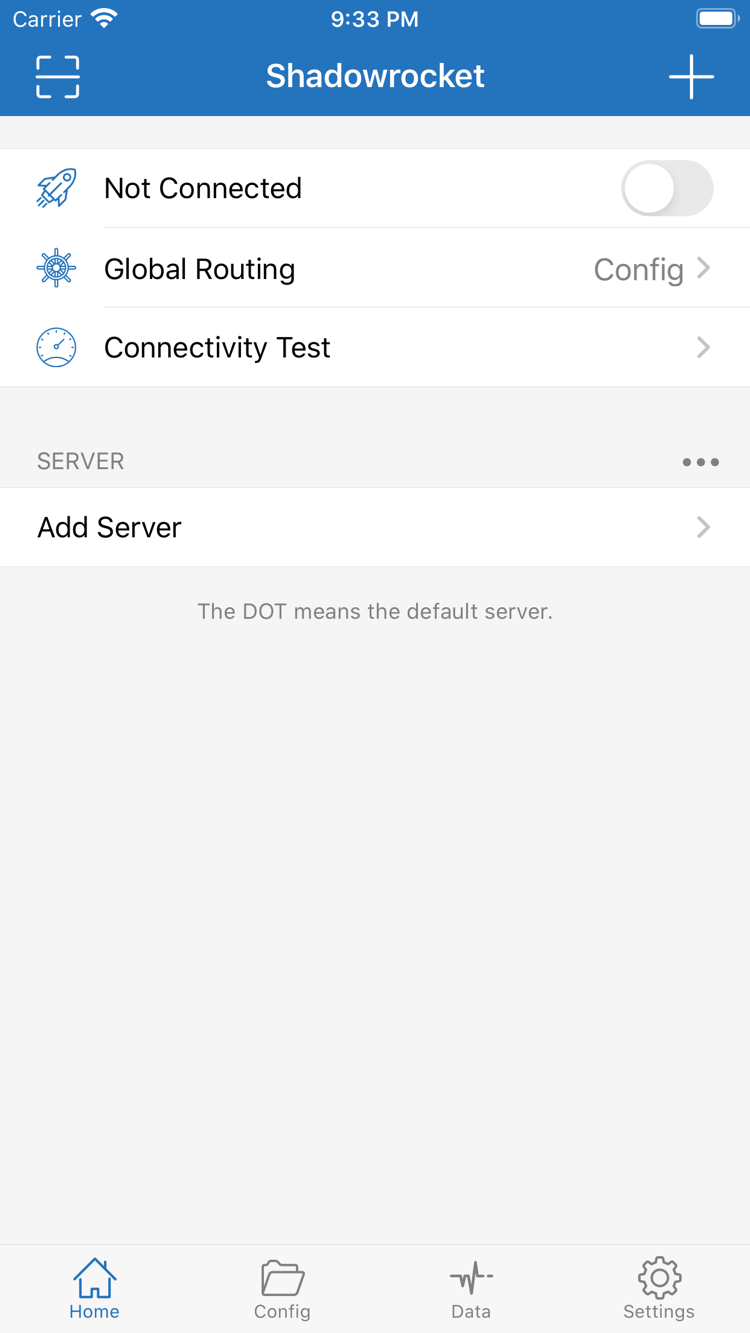
Once you've confirmed the server and Global Routing mode, turn on the switch at the top of Home. Before connecting, check the selected server one last time, especially if your subscription has several similarly named entries. A group name and the selected server aren't always at the same level.
Handle the VPN Configuration Prompt on Your First Connection
The first time you turn it on, the system may ask to let Shadowrocket add a VPN configuration. This allows the app to handle traffic using system networking features. Check the app name and prompt, confirm in the system interface, and complete any required device authentication. If you cancel, return to the app and trigger authorization again. Incomplete authorization is not a remote server failure.
After authorizing, return to Home and check whether the status at the top changes from Not Connected. Don't judge by the switch lighting up momentarily: if it turns off again quickly or the status keeps changing, note what happens and troubleshoot in step five. Successful system authorization only means the local configuration is allowed to connect; it doesn't confirm that the remote handshake, DNS queries, or destination access will succeed.
Keep Settings Stable After Connecting
Once the switch stays on, don't switch between several servers or repeatedly change Global Routing. Keep the current combination, run Connectivity Test in the next step, and then open a destination you actually need. This way, if something fails, you'll know which set of conditions was involved.
On iPad, follow the same order for selecting options and authorizing. Screen orientation and window width can change where lists and details appear. Look for entries by interface name, such as Home and Config, rather than relying on the exact button coordinates in a screenshot. If the layout differs, first confirm which page you're on and what you're trying to change.
To end the current connection, return to Home, turn off the switch at the top, and check that the connection has ended. If you've configured On Demand, the system may reconnect when its conditions are met. Check those conditions rather than repeatedly deleting configurations. You don't need to enable On Demand for initial setup; manually verifying a connection first makes issues easier to isolate.
STEP 04 / VERIFY REQUESTS
Connectivity Test: Compare Test Results with Actual Access
Verify three things: whether the test gets a response, whether you can access the actual destination, and whether the request follows the expected policy. These are related but not interchangeable. A response from one test only confirms a result for that test method; it doesn't prove that every protocol, website, or rule is working.
Run a Test, Then Send an Actual Request
Keep the connection and server selection from step three. In Home, tap Connectivity Test and wait for the result. Note the network, server, and Global Routing mode in use; there's no need to aim for a particular latency. If the test times out, don't delete the entry yet: the test target, test method, and server status can all affect the result.
Next, switch to an app that needs network access and open a specific page or refresh its content. Try to send a new request so you don't mistake a cached page for a working connection. If the destination requires an account login or its own service is having problems, assess those separately from network connectivity.
Use Data to Check Rules, Not Just Total Traffic
Return to Shadowrocket and check the available request or connection records in Data. Compare the destination, time, and policy with what you just accessed. Under Config, check whether the request followed the expected PROXY, DIRECT, or REJECT policy. An increase in total traffic only shows that data was transferred; it doesn't prove a domain matched the intended rule.
If a destination works under Proxy but fails under Config, first check the active configuration, the relevant Rule order, and FINAL rather than immediately re-entering the server password. If it also fails under Proxy, focus first on the server details, network path, and destination. Comparing modes is meaningful only when you keep the server, network, and destination the same.
If only domain access is affected, investigate DNS next. Don't change multiple DNS settings, protocol parameters, and rules before confirming the symptom. Change one item at a time, save, reconnect, and send a new request. Cached data and existing connections may preserve old results, so a single refresh may not show whether a change worked.
STEP 05 / ISOLATE FAILURE
Settings: Troubleshoot Common Issues by Symptom
Troubleshoot by identifying the type of issue before changing settings. Keep the original configuration and any records you may need to restore; don't start by deleting everything. The steps below check import, local connectivity, remote tests, and rules in turn. When you find the relevant symptom, make one change and return to step four to test again.
No Servers After Import: Check the Input First
If a subscription won't update or its group is empty, check that you copied the complete link, that it hasn't expired, and that your current network can reach the subscription URL. If it returns an account login page or an error, resolve the access problem with the subscription itself. Reconnecting won't fill in missing server details, and repeatedly toggling the switch won't fix unexpected subscription content.
If a manually added entry saves but doesn't work, check Type, Host, Port, and the identity and security fields required by that protocol, one by one. Make sure details haven't been mixed: don't pair one server's hostname with another entry's password or transport settings. Check unfamiliar fields against your original details rather than guessing from their names.
The Switch Won't Stay On: Check Authorization and Triggers
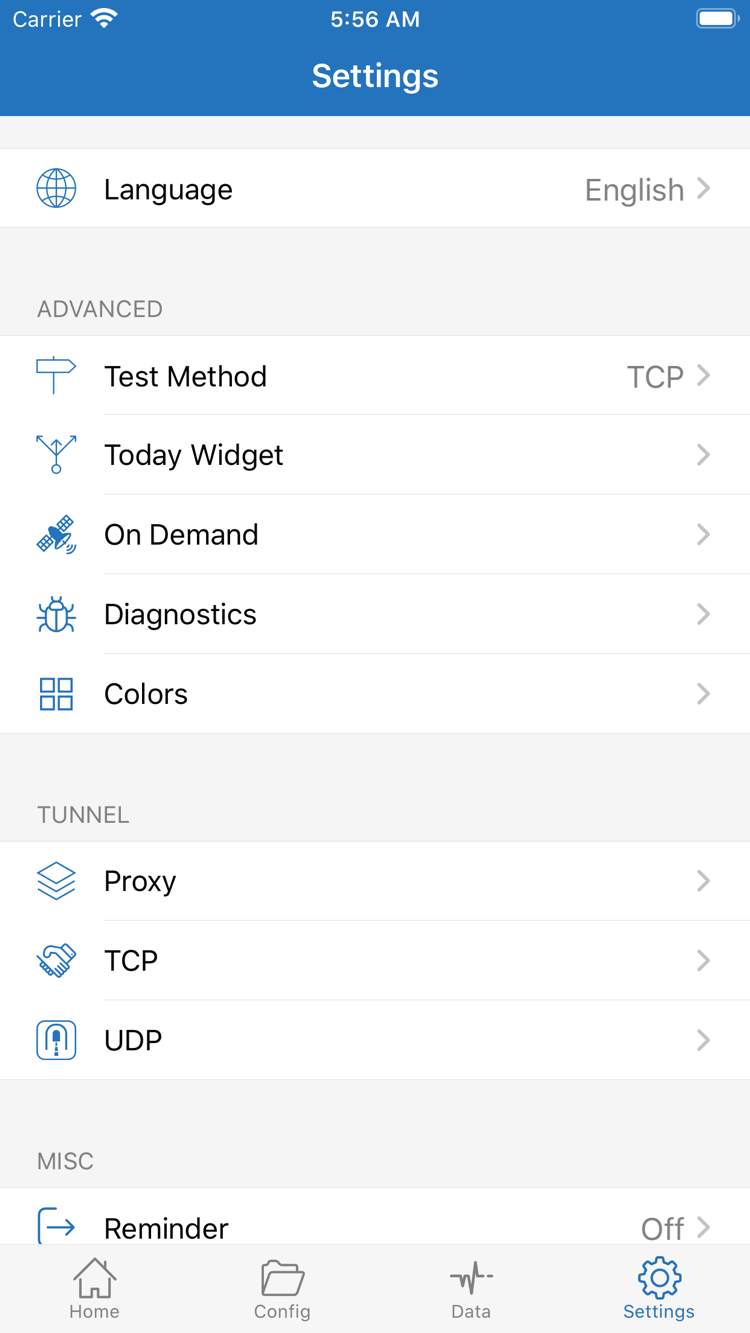
If the switch turns off as soon as you turn it on, first confirm that system VPN configuration authorization is complete and check for other configurations affecting the system VPN connection. In Settings, review On Demand. If you set network-based triggers earlier, record their current values, pause automatic triggering, and test manually to distinguish a failed connection from a rule that keeps triggering repeatedly.
To check system VPN configurations, search for VPN in system settings and review the relevant entry. Don't delete multiple configurations without a backup, and don't assume that a status bar icon proves a remote server has been verified.
Inconsistent Test Timeouts: Check Test Method
In Settings, find Test Method and check which method is selected. Different methods test different targets and connection stages, so a test result isn't equivalent to full access from your apps. Compare results using the same method, then check an actual destination. Don't assume that a single timeout for every entry means they all have the same problem.
If needed, compare your current network with another network available to you, keeping the server and mode unchanged each time. If the issue occurs on only one network, check its restrictions, authentication, or connection status. If the same entry fails on multiple networks, review the server details and service status.
Only Some Requests Fail: Check Rules and Diagnostics
If only specific destinations fail, find the corresponding request in Data. Check whether it was REJECTed, followed an unexpected DIRECT policy, or matched an earlier Rule. Record the rule position and original value before changing anything. Don't send all requests through the same policy just to mask the issue; restore the intended mode after a temporary comparison.
Diagnostics in Settings can help collect more information. Diagnostic data may include destination addresses, subscription details, or connection parameters; check for and remove identifying information before sharing it. During initial setup, don't adjust unfamiliar options under Proxy, TCP, or UDP. Verify each setting only in response to a specific symptom.
After troubleshooting, return to Home, select a server you've confirmed works, restore the intended Global Routing mode, and repeat the test and actual access check. For everyday maintenance, subscription updates, reading Data, and more about Settings, see the Shadowrocket system guide. The goal of this page is a basic setup that works and can be restored—not to change every advanced option at once.